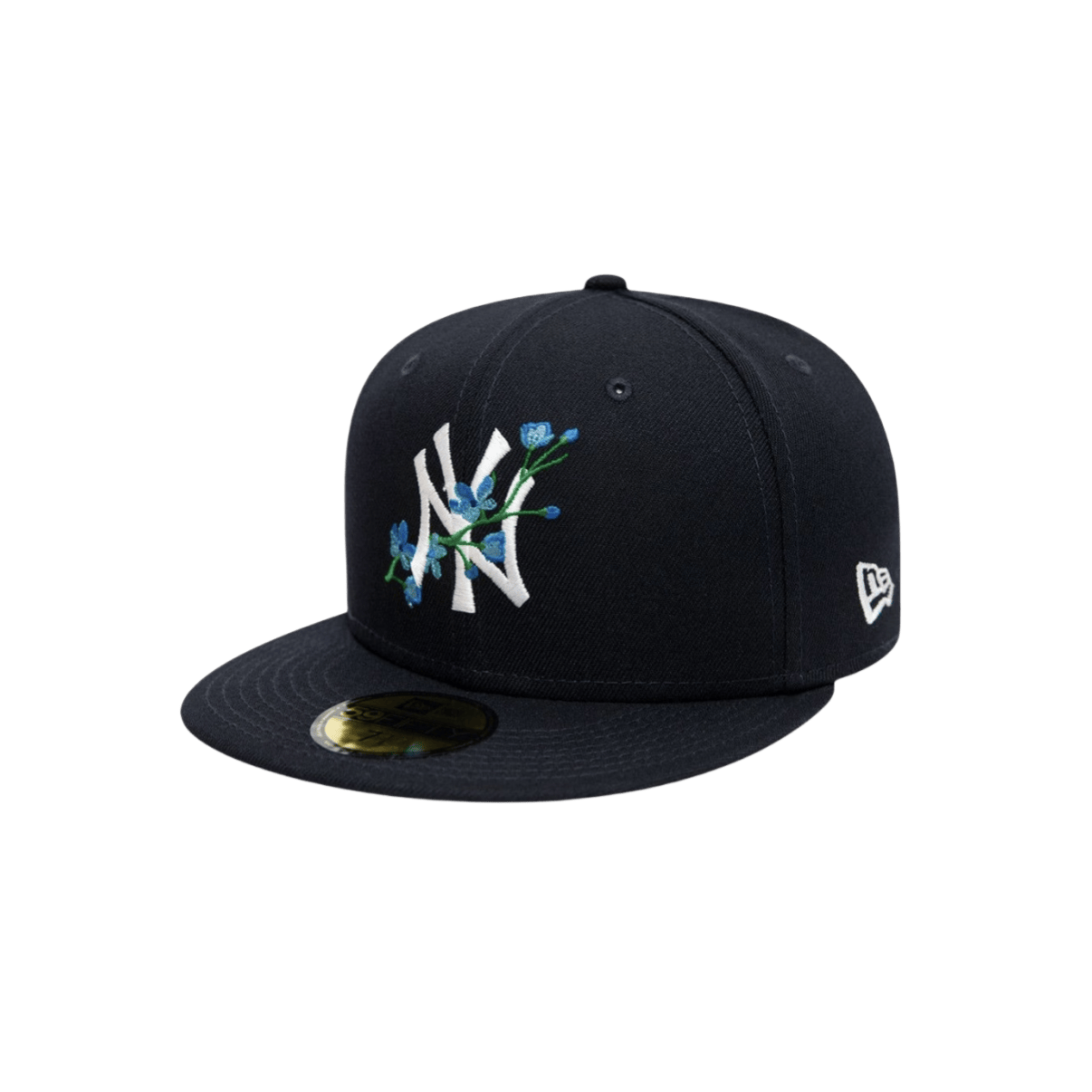
The CNFans QC Finder is a powerful, free-to-use tool that allows you to search a vast database of real, in-warehouse Quality Check (QC) photos from previous orders. By simply pasting a product link from sites like Taobao or Weidian, you can see how an item actually looks—its color, stitching, and details—before committing to a purchase. This unique feature empowers you to verify product quality firsthand, removing guesswork and ensuring you buy with complete confidence.

Table of Contents
- What Is the CNFans QC Finder?
- How to Use the CNFans QC Finder: A Step-by-Step Walkthrough
- What Should You Look for in QC Photos? A Detailed Checklist
- Maximizing Your Success with the QC Finder
- From QC Check to Your Cart: The Next Steps
- Frequently Asked Questions about the CNFans QC Finder
What Is the CNFans QC Finder?
Shopping from international platforms like Taobao, Weidian, and 1688 presents incredible opportunities to find unique items. However, a common challenge is uncertainty about the product's true quality. Seller images can be edited or misleading. The CNFans QC Finder directly solves this problem by providing a transparent window into our warehouse.
A Visual Database of Real Warehouse Photos
Every time a user purchases an item through CNFans, our dedicated team takes detailed Quality Check (QC) photos upon its arrival at our warehouse. These images are not stock photos; they are candid shots of the actual product. The QC Finder compiles these photos into a massive, searchable database. When you search for a product, you are accessing a library of images from past orders of that exact item, taken by our own staff. This gives you an unfiltered look at the product as it was received by other shoppers.
Why It’s an Essential Tool for Smart Shoppers
Utilizing the QC Finder is a critical step in making an informed purchase. It moves you from hoping for the best to knowing what to expect. The primary benefit is risk mitigation. By viewing previous examples, you can spot potential flaws, inconsistencies in color, or poor craftsmanship before spending any money. It also helps in verifying sizes. Many QC photos include measurement tapes laid across the garment, allowing you to confirm if the item’s actual dimensions match the seller's size chart. Ultimately, it ensures that the item you want is the item you will get.
How to Use the CNFans QC Finder: A Step-by-Step Walkthrough
Accessing this wealth of visual information is a straightforward process. The tool is designed to be intuitive, requiring only the product's original shopping link. Follow these simple steps to see real photos of your desired items.
Step 1: Locating the Product Link (Taobao, Weidian, 1688)
First, navigate to the product page on the original Chinese e-commerce site. Whether you are on Taobao, Weidian, or 1688, find the item you are interested in. Once on the product page, copy the full URL from your browser's address bar. This link is the key to unlocking the QC photo database for that specific item.
Step 2: Accessing the QC Finder Tool
Next, navigate to the CNFans platform. The QC Finder tool is prominently featured and easily accessible. You will find a search bar specifically designed for this purpose. It is typically labeled "QC Finder" or "Image Search" and is your gateway to the photo archive.
Step 3: Pasting the Link and Initiating the Search
Paste the entire product URL you copied into the QC Finder's search bar. There is no need to shorten or alter the link. After pasting the link, click the search button. The system will then scan its extensive database for any QC photos associated with that specific product ID.
Step 4: Analyzing Your Search Results
If previous orders exist for that item, the QC Finder will display a gallery of photos. You will see images from different orders, often showing various sizes and colors. You can click on each set of photos to view them in higher resolution. The results show the product from multiple angles, including close-ups of important details, just as another customer saw them.
What Should You Look for in QC Photos? A Detailed Checklist
Having access to QC photos is one thing; knowing how to interpret them is another. A systematic approach helps you evaluate an item's quality thoroughly. Focus on specific areas to build a complete picture of the product you are considering.
Overall Product Accuracy and Color
Begin by comparing the QC photo to the seller's stock images. Does the color match what was advertised? Warehouse lighting is neutral, providing a more accurate representation of the true hue than professionally edited studio photos. Check the item's shape, cut, and overall appearance. Does it align with the product you intended to buy? This initial check helps manage expectations and avoid surprises.
Stitching, Logos, and Fine Details
Zoom in on the details. For apparel, examine the stitching along the seams, cuffs, and collar. Is it neat and consistent, or is it messy and frayed? For items with logos, branding, or prints, check for alignment, clarity, and quality. Poorly executed logos or sloppy embroidery are often indicators of lower quality. These small details are frequently the difference between a great purchase and a disappointment.
Sizing Tags and Measurement Photos
Pay close attention to any photos that show the item's tags or measurements. The size tag can confirm you are looking at the correct version (e.g., Medium vs. Large). More importantly, look for photos where a measuring tape is laid across the chest (pit-to-pit), length, or waist. Compare these real-world measurements to the seller's size chart to ensure a proper fit, as sizing can vary dramatically between sellers.
Material Texture and Quality Assessment
While you cannot touch the material through a photo, a high-resolution image can reveal a lot about its texture and thickness. Does the fabric look thin and cheap, or does it appear to have the weight and structure you expect? Look at how the material drapes or folds. These visual cues can help you make an educated guess about the feel and durability of the item.
| Area of Inspection | What to Check For | Red Flags |
|---|---|---|
| Color & Shape | Accuracy compared to seller photos. | Noticeable color difference, misshapen product. |
| Stitching & Logos | Neatness, consistency, and alignment. | Frayed threads, crooked logos, blurry prints. |
| Measurements | Real measurements vs. seller's size chart. | Significant size discrepancies (e.g., >2-3 cm). |
| Material | Apparent thickness, texture, and structure. | Fabric looks overly thin, shiny, or cheap. |
Maximizing Your Success with the QC Finder
The CNFans QC Finder is an incredibly effective resource, but there are ways to use it even more effectively. Knowing how to troubleshoot and interpret results will elevate your shopping experience.
What If No Results Are Found?
Occasionally, you might paste a link and receive a "no results found" message. This does not necessarily mean the item is bad. It could mean several things: it might be a new item that no one has ordered through CNFans yet, the seller may have created a new listing for an existing product, or you may be the first person to discover it. In this case, you can be the pioneer. By purchasing the item through CNFans, your QC photos will be the first to be added to the database, helping future shoppers.
Comparing QC Images with Seller’s Stock Photos
Always use the seller's photos as a reference point, but trust the QC photos as the "ground truth." Sellers use professional lighting, editing, and sometimes even different product batches for their promotional images. QC photos show you the typical product a customer receives. If there are minor differences, it is usually acceptable. However, if the QC photos reveal a product that is drastically different in quality, color, or design, it is a clear warning sign.
From QC Check to Your Cart: The Next Steps
After using the QC Finder to validate an item's quality, the path to purchasing it is seamless. The tool is integrated directly into the CNFans purchasing ecosystem, making your shopping journey smooth and efficient.
Making an Informed Purchase Decision
With the visual evidence from the QC Finder, you are now equipped to make a final decision. If the photos confirm the item's quality and it meets your expectations, you can proceed with confidence. If the photos reveal unacceptable flaws, you have successfully avoided a potentially bad purchase without spending anything. This decision-making power is the core value of the QC Finder.
Seamlessly Adding Items to Your CNFans Cart
Once you are satisfied, you can use the same product link to add the item to your CNFans cart. Simply paste the URL into the main search bar on the CNFans site. Our platform will fetch the product details, allowing you to select your desired size, color, and quantity. From there, you can complete the purchase, and when your item arrives at our warehouse, we will take new QC photos specifically for your order, giving you a final chance to approve it before international shipping.
Frequently Asked Questions about the CNFans QC Finder
Here are answers to some common questions about this feature.
Why can't I find photos for a very popular item?
This can happen if the seller frequently creates new listings for the same product. Each new URL is treated as a unique item by the system. Try to find alternative listings for the same item or search by product name on community forums to find a link that others have used.
Are the QC photos edited in any way?
No. The photos displayed in the CNFans QC Finder are the raw, unedited images taken by our warehouse staff. Their purpose is to provide an honest and transparent look at the product, so authenticity is our top priority.
How often is the QC photo database updated?
The database is updated in real-time. As soon as QC photos are taken for a new order and approved by the user, they become part of the searchable archive. This means new photos are added continuously, every single day.
Can I search by image instead of a link?
Currently, the QC Finder operates using the product URL as the primary identifier. This is the most accurate way to connect photos to a specific item from a specific seller. Image-based searching is not a feature at this time, as links provide more precise results.